Save customer replies. Reuse them in Chrome.
Keep answers to recurring customer questions beside the page. Choose a saved reply, fill in the details, then insert it into a supported field or copy and paste it. You review and send the message yourself.
Related guides
A starting library you can make your own
Create your account to open setup with a suggested library of short browser replies. Adjust the suggestions, generate your library, then edit one reply you use often.
Short answers, scheduling messages, reminders, thank-you notes, and polite declines. Replace the examples with details and promises you can stand behind.
Already have an account? Get the extension above and sign in with the same account to access your saved replies.
Set up my reply libraryHow to use it
- Start your 15-day trial and finish account setup on the CopyPoppy website.
- Create your reply library from the suggested setup and save one short answer you use often.
- Get CopyPoppy from the official Chrome Web Store link above and pin it to your toolbar.
- Open the extension and sign in with the same CopyPoppy account.
- Click a reply field on a website, open CopyPoppy, and choose your saved answer.
- Insert into a supported field or copy and paste. Review the text, then send it yourself.
Keep repeat answers beside the conversation
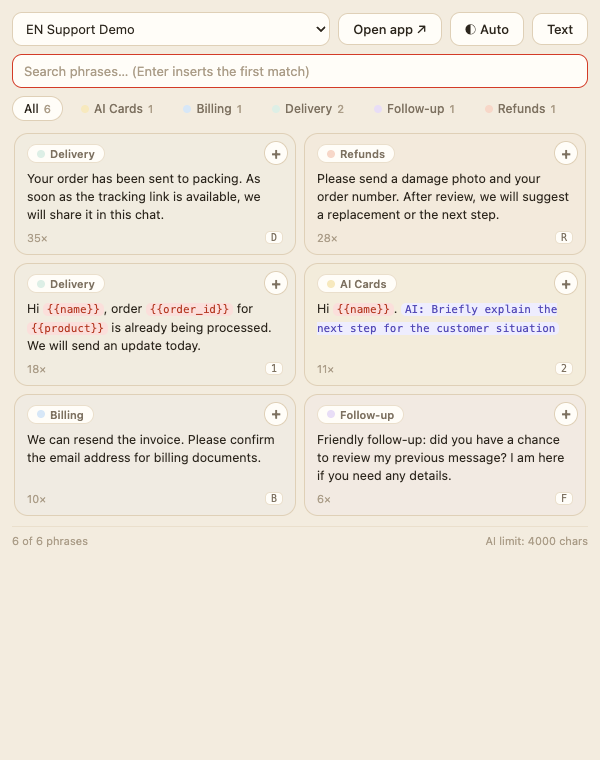
When you answer the same question again, open CopyPoppy from the Chrome toolbar and choose a saved reply. Your library stays beside the page where you are working.
Use a short answer as it is, or add fields for details that change, such as a customer name or order number. Check the completed text before you use it.
Install and sign in once
Use Get the Chrome extension at the top of this page to open the official CopyPoppy listing. In Chrome Web Store, choose Add to Chrome and review Chrome's installation prompt.
Pin CopyPoppy from Chrome's Extensions menu so it is easy to find. Open it and sign in with the same account you use on the CopyPoppy website. Your saved reply library is available there.
Page context only after your action
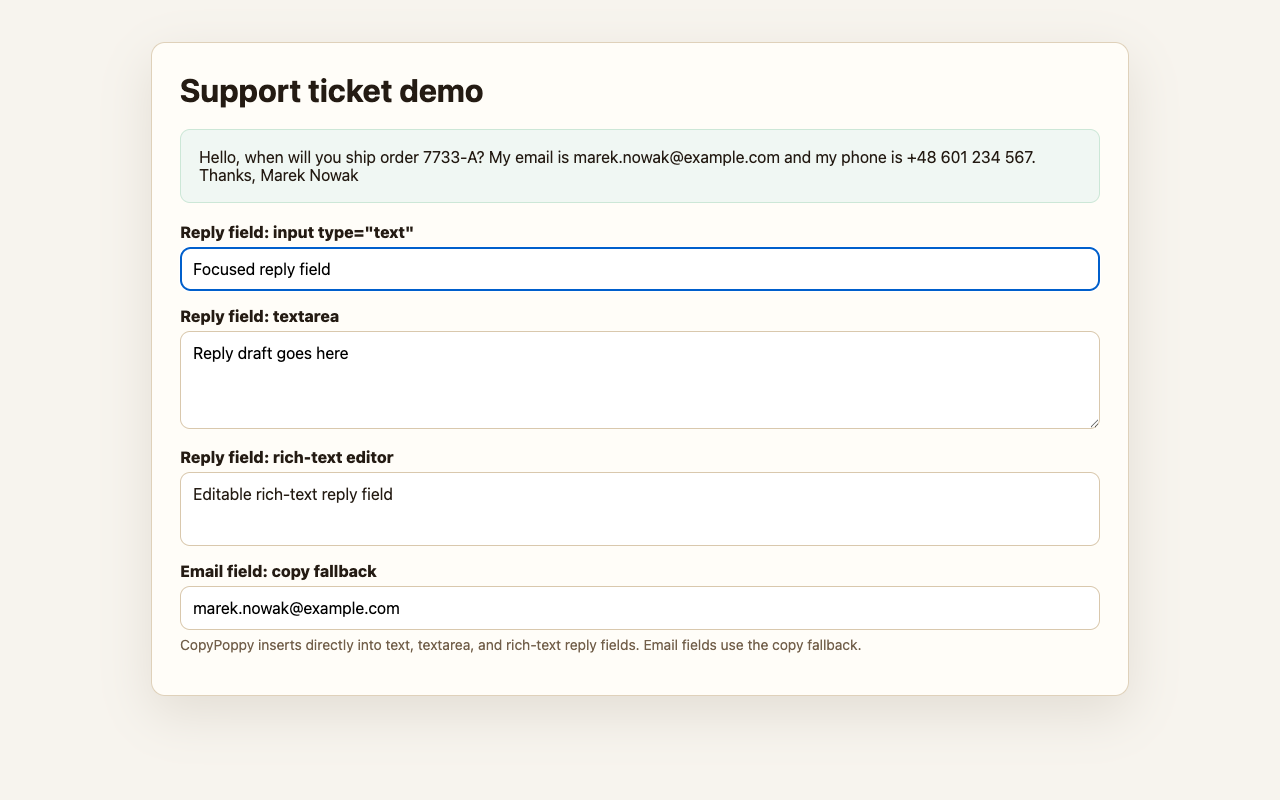
Your first reply can be a simple saved snippet. When a reply needs details from the current conversation, you can explicitly trigger Smart Fill or an AI action using selected text or page context.
The extension is not a background page reader. Review any suggested details and AI-generated wording before copying or inserting the reply.
What the extension needs access to
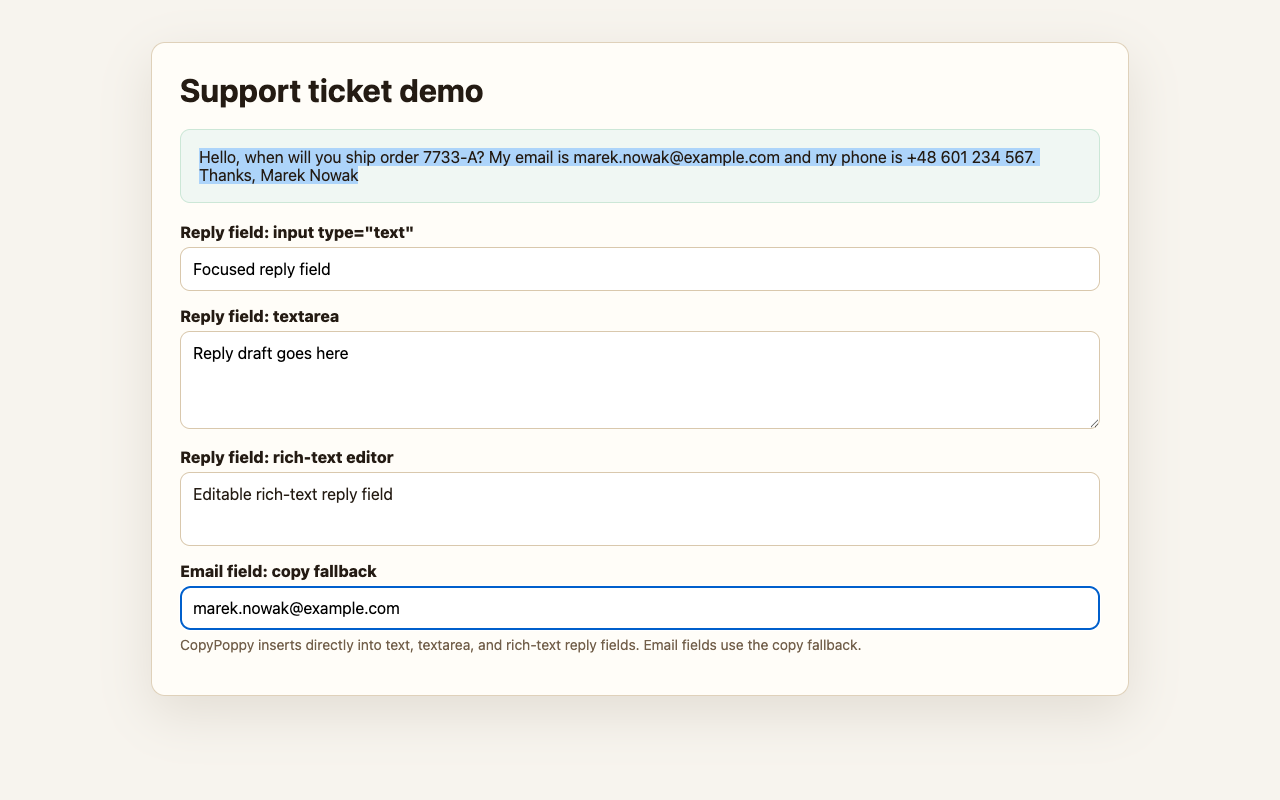
The extension connects to your CopyPoppy account and uses the active tab for actions you request, such as inserting a reply or using page context. Storage keeps extension settings, and clipboard access supports copying.
You can also save selected text from the context menu or use optional dictation. Check the listed permissions in Chrome Web Store before installing.
If insertion is unavailable, copy and paste
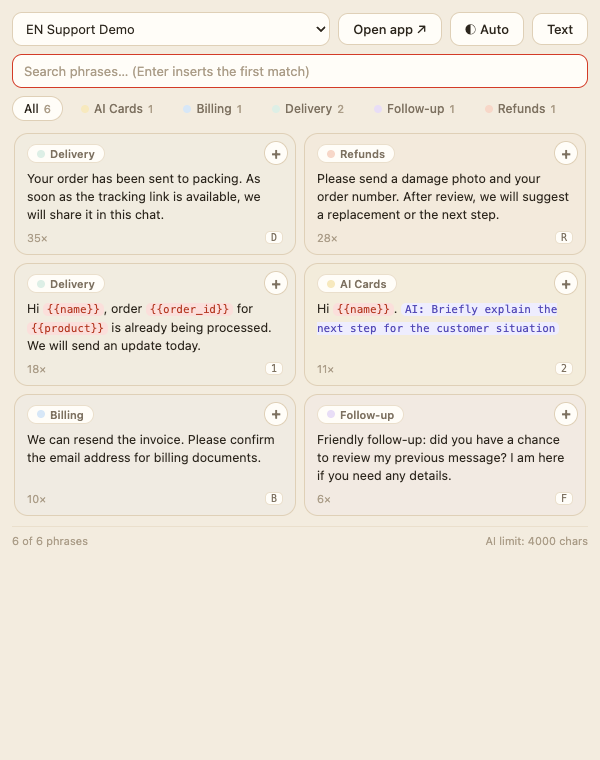
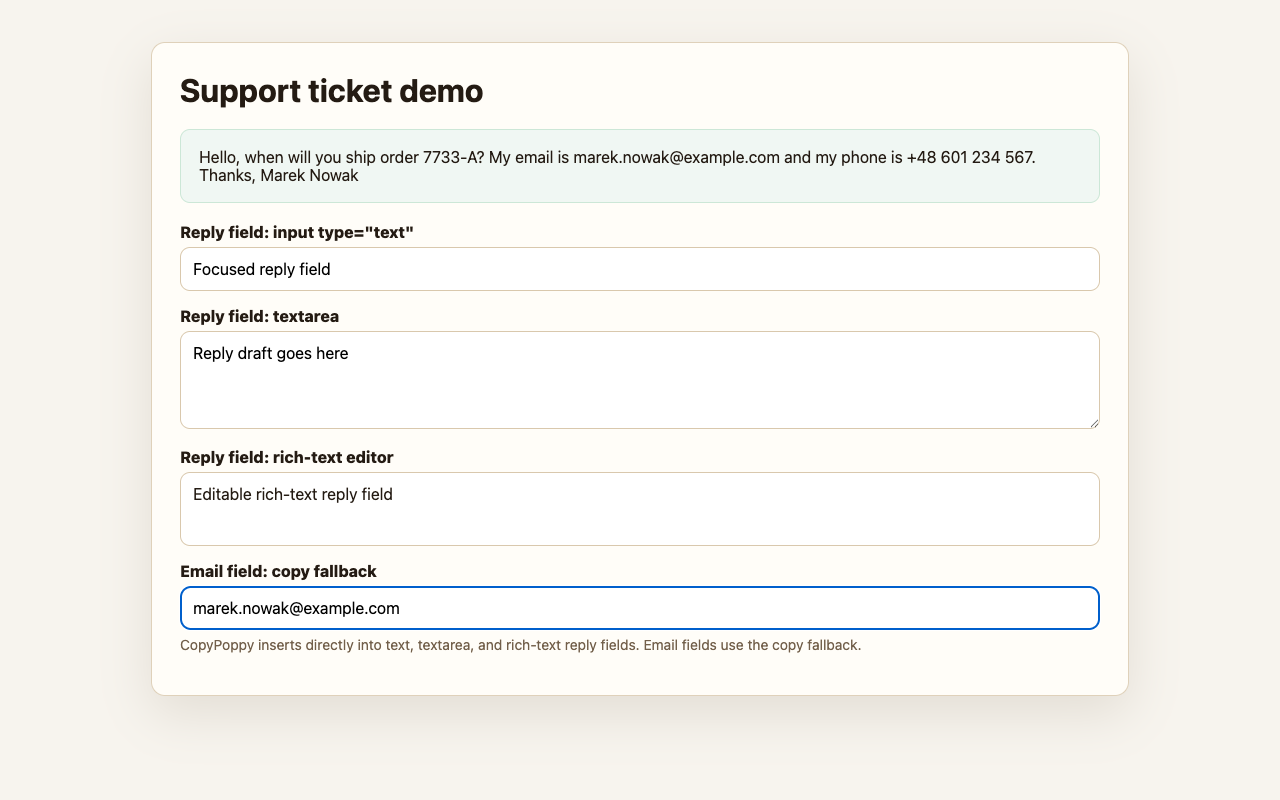
Click the reply field on the website before opening CopyPoppy. Choose your saved reply and insert it if that field supports insertion.
If the website blocks insertion, use Copy in CopyPoppy, return to the reply field, and paste the text yourself. Check it once more before pressing the website's Send button.
Make the next answer easier too
After your first reply, save another answer you expect to use again. Group related replies so you can find them when the same question returns.
CopyPoppy prepares text for you to review. It does not send messages automatically or replace your inbox or helpdesk.

Try one simple reply first
Save a short acknowledgement: Thanks for your message. I will check the details and get back to you.
Open the extension on a page with a reply field, find that saved answer, and insert it or copy and paste it. Edit it to fit the conversation before sending.
Once that works, add a second reply or a changing detail such as a name. Page context and AI are optional next steps, so you can learn the basic workflow with a plain snippet.
FAQ
Does the extension read every page in the background?
No. Page context is used only after an explicit user action such as filling a card or running an AI action from the popup.
Do I need a CopyPoppy account?
Yes. Create your account on the CopyPoppy website and sign in to the extension with that same account. New accounts start a 15-day trial; installing the extension does not create an account for you.
What happens if a website blocks direct insertion?
Use the copy fallback. CopyPoppy prepares the reply, then you paste it into the site manually.
Is this a full text expander replacement?
Use CopyPoppy for browser reply cards with variables, AI actions, and review. Keep a system-wide text expander for tiny static abbreviations.